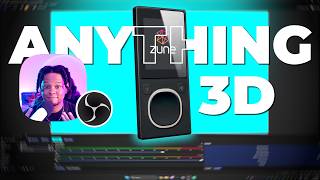

iPod Animation Goes Viral!
45sThe creator addresses a viral comment and sets up a compelling tutorial promise, sparking curiosity.
▶ Play Clip"Delivers on the promise of making anything 3D with a plugin, but includes repetitive commentary and self-defense that dilutes the tutorial."
The video is a response to viewer comments on a previous iPod animation tutorial, clarifying that the creator's goal is to teach viewers how to create 3D devices themselves using OBS Studio and free plugins, rather than just showcasing a single example. The creator demonstrates a step-by-step process for making a 3D Zune from a simple image, using the 3D Block filter and Advanced Mask Filter, and emphasizes that viewers can apply these techniques to create any 3D object in OBS.
The creator reposted an iPod animation MP3 player video that received 1.8K likes, but comments criticized the example, saying it should have been different (e.g., a phone playing a clip, an iPod photo, or Apple Music). The creator clarifies they only made the 3D animation, not the widget.
The creator emphasizes that the goal is to show viewers how to create their own 3D devices using tools, not to present a single finished product. They stress that viewers can make anything they want with the knowledge provided.
The creator demonstrates that 3D devices can be made directly in OBS Studio without fancy software, as shown in a follow-up example. They push themselves to do things from scratch in OBS to give viewers the knowledge to create whatever they want.
The creator advises viewers to start working on their projects immediately or begin researching, rather than waiting for permission. They don't DM anyone asking for custom requests; instead, they encourage self-learning.
The creator lists past tutorials: 3D text, reflective glass effect, extruding a gun, full 3D rotation on a 3D card, holographic effect, and a 3D Nintendo Switch made from scratch in OBS, including animation and color changes.
The creator mentions an updated version of a plugin that works with anything with an alpha channel (transparency), enabling 3D guns, knives, logos, and panels in OBS.
The creator concludes the intro and transitions to the main tutorial: making a 3D Zune. They note that viewers can get an image from Google Images and save it as a JPEG.
Right-click an image from Google Images, save it as a JPEG. In OBS, add an Image Source and browse to the file.
Go to Horizon's Twitter, download and install the 3D Block plugin. In OBS, go to Tools > Scripts, add the script, which adds a '3D Block' filter.
Add the 3D Block filter to the image. Since the image isn't transparent, the white parts are included, so use the Advanced Mask Filter to mask out unwanted areas.
Add the Advanced Mask Filter, adjust the corner radius until the outside disappears, then place the 3D Block underneath the mask to create a 3D Zune that can be animated.
Upload a picture of the back of the Zune in the filter settings. To add a music player, place both images in a group and apply the 3D Block filter to the group, so it sticks to the device.
The creator acknowledges repeating themselves but defends the approach: they show a tool and demonstrate one example, but viewers should understand the tool's versatility. They find it hard to gauge which subjects to revisit.
The repost of an old tweet still has reach, prompting the creator to consider when to repeat themselves versus teach new content. They note that all information in this video was already shared in two other videos and on Twitter.
The creator shows how to animate a 3D object (e.g., floating) and place it on a PNG of a Gameboy, grouping them and adding the 3D Block filter. Viewers have made Game Boy Advance and Nintendo DS versions.
The creator ends the video, noting that's enough rambling for today.
The video reinforces that viewers can create 3D devices in OBS Studio using free plugins, with the Zune tutorial serving as a practical example. The creator encourages self-learning and emphasizes that the techniques are versatile and applicable to any object.
What is the main purpose of the video?
To teach viewers how to create 3D devices in OBS Studio using free plugins, not just showcase a single example.
00:44
What plugins are used to make a 3D Zune in OBS?
3D Block plugin and Advanced Mask Filter.
04:03
How do you add the 3D Block filter in OBS?
Go to Tools > Scripts, add the script, then add a '3D Block' filter to the image.
04:16
What is the purpose of the Advanced Mask Filter in this tutorial?
To mask out unwanted background (e.g., white parts) from the image.
04:45
How can you add a music player to the 3D Zune?
Place both images in a group and apply the 3D Block filter to the group.
05:18
Teach Tools, Not Just Showcase
Clarifies the creator's educational philosophy, emphasizing that viewers can create their own 3D devices.
00:443D Devices in OBS Studio
Demonstrates that complex 3D effects are achievable in free software, making the technique accessible.
01:013D Block Plugin Installation
Provides a concrete tool and installation method, enabling viewers to replicate the process.
04:03Grouping for Complex 3D Objects
Shows a key technique for combining multiple elements into a single 3D object, expanding creative possibilities.
05:18[00:00] And it's the one about my iPod animation MP3 player that you can have on Funny thing is, when I posted it the first time it got 1.8 K likes. So a lot of new people are seeing it for the first time.
[00:17] There's a particular comment that I keep getting under this. but your example should have been something else. this. But as a phone playing a random clip.
[00:32] An iPod photo, which is different. with Apple Music. Even though I did not make the widget, I just made the 3D animation for the iPod.
[00:44] is to show you again that, actually you can create your own. If I tell you, hey, here's how to do this thing. I'm not saying, hey, this thing that I made is the only,
[01:01] I'm saying, hey, here are the tools. So as you can see in this example that I posted afterwards, I showed you that you can actually make 3D devices directly in OBS studio.
[01:18] You don't need a fancy software like I used to for making the original iPod. If you watch my videos, you will get the knowledge to create your own. Yes, sometimes I do templates that are not super customizable.
[01:36] But the whole reason why I push myself to do things in OBS studio from scratch is that you can get that knowledge and basically make whatever you want. My My answer is always yes. Start working on it right now.
[01:51] or just start researching and start figuring it out. I don't DM anyone saying, hey, could I make an iPod in 3D? So I've showcased 3D text before.
[02:08] I showed how to create this reflective glass effect in OBS studio. I showed you how to extrude a gun in OBS studio. that would reveal information directly in OBS studio.
[02:21] Here I'm showing how to do a full 3D rotation on a 3D card Now, this is not real 3D, but I do show how to do the holographic effect. Here's me making a 3D Nintendo Switch from scratch inside of OBS studio.
[02:39] And also how to animate it. It makes it easy to change the colors. I'm typing in my chat and it's randomly changing the color.
[02:55] Then after that, in a different video, I show the updated version of that plugin. pretty much anything with an alpha channel with transparency basically. So yeah, you can have 3D guns in OBS studio.
[03:10] 3D rendered knife, and I showed that you could probably easily do it within OBS studio will look different because reflection, textures and all that. That is in OBS studio again. Logos.
[03:26] Now you can probably design your own panels, slap that 3D effect on it. all this yapping to say, one to watch my videos. Two. Let's make that damn Zune.
[03:39] you could literally just get an image from Google Images. I can right click save image as oh but it has like white all around it.
[03:51] I'll save it here as a Jpeg. In OBS studio I would go to source add in image source. Browse and find that image.
[04:03] And now you have it in OBS. Okay. Then I would go to Horizon's Twitter. and I would download and install it.
[04:16] It brings me directly to the download link. Then in OBS studio you would go to tools, scripts, add a new script Once the script is in here, you will have a new filter called the 3D block filter.
[04:32] add a new filter, select 3D block, click okay. but since the image wasn't transparent, it's taking the white parts into account.
[04:45] So we're going to use another plugin called Advanced Mask Filter. And basically mask out everything that we don't want. I would put it here, the only settings that we need is the corner radius.
[05:03] So I'm just going to scroll until it looks like the outside disappears. Now I can select my 3D block, put it underneath that And boy now you have a 3D Zune that you can animate. Now.
[05:18] You can find a picture of the back and upload it right here in the filter. and if you want to add your music player, basically place it, put both of them in a group and then add the 3D block to that group and it will be stuck to it.
[05:32] So yeah, I don't I don't mean to sound rude or anything like that. I've been really, like repeating myself. That is preposterous.
[05:47] I will show a tool and then people will be like, well, I showed the tool, I showed you that you can change the colors People just focus on the one example that I give and basically the approach
[06:05] that I did not show every single example in the world, every possibility. But also, it's very difficult for me to gauge which subjects I should revisit.
[06:18] this was a repost of an old tweet and it's still got this reach now number. when I should be repeating myself versus teaching new stuff.
[06:31] But yeah, every information in this video that you just watched was already said in two different other videos and posted multiple times on my Twitter. Or it can just animate itself a little bit, float around on its own.
[06:48] and then put it on a PNG of a Gameboy and I'm like, put it in a group, add the 3D Bloch filter to the group, and now you have a 3D Gameboy If you want, or just stay static or just go up and down
[07:04] some people have made the Game Boy Advance super easy, Some people have made the Nintendo DS with like their camera up top
[07:16] Anyways, that's enough rambling for today.
⚡ Saved you 0h 07m reading this? Transcribe any YouTube video for free — no signup needed.