
Instantly Preview PDFs in Browser Drag & Drop Editor
43sShows how to load and preview PDF instantly without server, impressing viewers with a Canva-like experience.
▶ Play Clip"Title promises a tutorial on how to build a PDF editor, but the video is only a demo and sales pitch for the creator's code."
This video demonstrates a drag-and-drop PDF editor built entirely in a single HTML file, running in the browser. The creator showcases features like highlighting, adding text and images, whiteout, comments, and page duplication, and promotes purchasing the source code.
The video will show how to build a drag-and-drop Canva clone PDF editor directly in the browser using HTML, CSS, and JavaScript.
The entire application is a single index.html file (about 2200 lines) that runs directly in the browser without any backend.
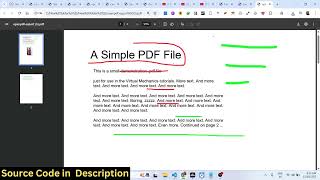
After selecting a PDF, all pages are displayed with live preview, and each page can be individually edited.
Using the pen operator, users can highlight content on the PDF. Color and stroke width can be adjusted via color picker.
Users can click to add text at any location and also insert images by selecting an image file.
After modifications, clicking the export PDF button saves the changes as an output PDF file.
Users can add a new blank page or delete existing pages easily.
A whiteout tool allows hiding specific portions of the PDF by selecting them.
Comments can be added to the PDF, and pages can be duplicated with a single button click.
The video serves as a feature showcase for a ready-made drag-and-drop PDF editor built as a single HTML file, emphasizing ease of deployment and modification, with a link to purchase the source code.
What file format is the entire PDF editor contained in?
A single index.html file.
00:15
How can you change the color of the highlighting tool?
Using the color picker.
01:10
What does the whiteout operator do?
It hides selected portions of the PDF.
02:48
List three tools available in the editor.
Highlighting, adding text, and adding images.
01:10
How can you duplicate a page?
By clicking the duplicate button.
03:03
Single HTML File Implementation
Shows that a full-featured PDF editor can run without a backend, all within one file.
00:15Real-time Highlighting with Customization
Demonstrates interactive annotation with color and stroke control.
01:10Whiteout Tool for Content Hiding
Provides a simple method to redact or hide sensitive information.
02:48[00:02] in this video, I'll show you how to build out a drag and drop Canva clone PDF editor directly in browser. So actually editing your PDF files directly in browser. So this is actually the application that I developed entirely
[00:15] inside browser using HTML, CSS and JavaScript. I have given the link you can directly purchase this source code. This is a single index.html HTML file as This is a single index.html HTML file as you can see about 20 2200 lines of code
[00:30] here. So it's a single file which directly runs in the browser. So it's a single static web application. So it's a similar to drag and drop Canva clone similar to drag and drop Canva clone kind of a editor. So here you will
[00:43] select your first of all your PDF file whatever PDF file you want to select.
[00:55] file will display here with live preview. All the pages will be there. So you will be able to individually uh be able to edit the PDF. So we have a quite a number of uh tools out there for annotating highlighting the PDF here. So
[01:10] you select the pen operator. So simply you can select the PDF here. You can highlight anything right here using this. You also have the capability to change the color using the color picker. So change the color here and you can
[01:25] just see how easy it is. You can even change the stroke level as well. And then you can go to the next page. Do the same highlighting. And you also have the capability to add text here. So simply click on the location where you want to
[01:40] add the text here and just add the text here. And also you have the capability to add images. So you simply select the image file whatever image file that you accordingly and after making these modification you
[01:54] can click the export PDF button to change. So save the changes here and you will see the output PDF file will be saved here. So if you're interested in this Canva clone drag and drop PDF editor you can purchase the source code.
[02:07] I have given the link in the description of the video. So it's very easy to modify the source code as well. So once you get the source code, you can add additional features on top of this or add uh you can modify the interface as
[02:20] and it's also very easy for you to deploy this application. It's just a deploy this application. It's just a single file here index html. So it's a single static web application. So there is no backend. All the code is there in
[02:34] a single file. So you also have the capability to add a blank page as well. So simply click and this blank page will be added. And now if you want to delete button as well. So all these
[02:48] modifications you can do. And apart from that we also have this. If you want to hide something in PDF, you can click this operator which is white out. And simply select the portion that you want to hide and that portion will be hidden.
[03:03] So you can just see how easy it is. It's really fast as well. So everything is hidden out there. You also have the capability to add a comment as well. So you can just see here you can add a comment as well. And if you want to
[03:18] duplicate a page, you can click this button here to duplicate the page. So everything will be duplicated. So this is a Canva clone uh drag and drop PDF editor. So if you are interested in this, the link is given in the
[03:33] this, the link is given in the description.
⚡ Saved you 0h 03m reading this? Transcribe any YouTube video for free — no signup needed.