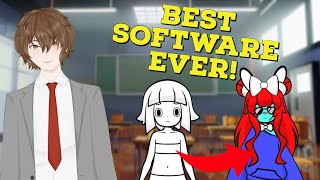
You Don't Need to Draw to Be a VTuber!
45sThis hook breaks down the biggest barrier to entry for aspiring VTubers—art skill and cost—immediately pulling in a huge target audience.
▶ Play Clip"Title's hype is mostly earned — it's a genuine free-tool walkthrough with customization and streaming setup, though the intro has some filler."
This video introduces VTuber Kit, a free and lightweight program for creating and customizing 2D VTuber avatars without drawing skills. The host walks through downloading and installing the software, configuring face tracking and Twitch integration, building a custom avatar, and setting everything up in OBS for streaming on Twitch or YouTube.
VTuber Kit is a free, highly customizable and lightweight program aimed at new 2D VTubers; the host recommends it strongly.
Go to the creator's Twitter, open their website, select Download folder, drag the file to desktop, execute it, then launch vtuberkit.
Settings are in the top-left: set background color (green screen preferred), pick camera and microphone; leave UI, tooltips, and windows settings on default.
Allows skin color selection, tracking quality, tracking smoothness, camera FPS (match your camera), movement limit, tilt face, vertical face, voice detection sensitivity, and auto-blinking.
Enter Twitch username, authentication key, and channel ID; set headphone output at 0.5 and configure thrown objects. This integration is rare in VTuber programs.
Saves camera scroll/zoom position, supports multiple model variations (e.g., different hair) with quick switching, and includes head pad testing and welcome info.
Customize face, hair, bangs, hair color, shading strength, iris style/color, pupils, mouth, clothing and accessories; accessories can be added repeatedly, and a customization tab is coming soon.
Press Escape to hide UI; in OBS add Game Capture source, label it 'Vtuber Kit', set mode to Capture specific window, and enable Allow Transparency to auto-remove green screen.
After positioning and locking the avatar, it is ready for streaming; the host suggests supporting the developer on Patreon and testing the Twitch features.
VTuber Kit is a standout free option for aspiring VTubers: no art skills required, fast OBS integration, and a rare built-in Twitch throwing system make it easy to go live with a custom 2D avatar.
What key hides the VTuber Kit UI for OBS capture?
Escape
07:40
What OBS setting automatically removes green screens in VTuber Kit?
Enable "Allow Transparency" on a Game Capture source
08:12
What is the recommended background color for VTuber Kit?
Green screen (green) is preferred
01:35
What does the camera FPS control in VTuber Kit need to match?
Your camera's actual maximum FPS; don't set it higher than the camera can handle
02:17
Which open-source library does VTuber Kit credit for face tracking?
Open-c-face
04:08
What volume setting is suggested for the stream headphone in the Twitch tab?
0.5
03:11
How do you add multiple accessories to your avatar in VTuber Kit?
Click the accessory repeatedly to keep adding more
06:57
What information is required for VTuber Kit's built-in Twitch throwing system?
Twitch username, authentication key, and Twitch channel ID (plus headphone device)
02:57
Avatar creation without drawing skills
Preset-based customization removes the traditional art barrier for aspiring VTubers.
05:02Rare built-in Twitch throwing
This interactive feature is integrated natively, which most comparable VTuber programs lack.
02:45Transparency-based green screen removal
Enabling Allow Transparency in OBS eliminates the need for chroma key setup.
08:12Green screen recommended, not required
Users can start with any background, making the tool more accessible for low-budget setups.
01:35[00:02] can't afford it or do you not have the skills to draw and make your own live 2d vtuber well that's okay because in today's video we're going to be checking out this amazing piece of software called vtuber kit the duper kit is a
[00:15] highly customizable very lightweight program that is fantastic for new 2d vtubers and honestly i cannot recommend it enough but before
[00:27] we jump into today's video make sure you like comment and subscribe it really does help out the channel all the links that are mentioned in this video are in the description down below also please consider checking out the creator of
[00:40] this software their twitter is also linked down in the description below they deserve so many follows the first thing we're gonna do is head to the person that created the software's twitter and hit the download link
[00:53] once we're at their website we will scroll down just a little bit and we will select download folder
[01:08] once that's done we will drag it to our desktop and execute the file once it's all done depending on the computer you have this process can take a couple of seconds to a couple of minutes now we'll just open up the folder and click on
[01:22] vtuber kit great now that we have the program open let's take a look at some settings the settings of the program is located on the top left hand side and as we see we got game capture down here so background
[01:35] color we could change it to whatever we want preferably probably green screen would be better camera camera gives you your camera to c920 so it actually uses the proper
[01:47] microphone we're going to swap that to my microphone you might not have to do this but i have to do this ui settings we're just going to leave it there tool tips we will also leave in windows settings we're going to leave it as
[02:01] default okay now let's check out the xy tab okay now that we're in the xy we got skin color selection so we could change our skin color to say maybe orion green or andorian blue we also have tracking quality
[02:17] obviously the higher the number the better the tracking tracking smoothness camera fps control you want to make sure this is actually set to your camera's proper fps don't crank it up to 60 if your camera cannot handle 60 keep it to
[02:30] what it actually can handle movement limit we're going to leave it on default tilt face face vertical voice detection sensitivity you might have to play a microphone everything else i would probably leave on default especially
[02:45] auto blinking it is a very nice feature now let's check out it's really really cool integrated feature with twitch be tuber kit actually has a built-in
[02:57] twitch throwing system which is absolutely astounding not a lot of programs actually have this built in you type in your twitch username at the top your authentication key your twitch channel id
[03:11] your headphone that you want to have it play on stream which would probably i would say probably 0.5 the direction of said and you could also do throwing objects which direction you
[03:27] whatnot and this is a fantastic feature that's software now i'm not going to show me actually mostly because i don't want to accidentally leak any of my
[03:41] authentication keys or anything like that but i really really suggest you guys set this up and give it a try trust me when i say it it's worth it okay so now let's check out the last two tabs on the left hand side before we get into
[03:56] real customization of our avatar underneath the information tab we got their website we have where we can support them on patreon which i highly suggest we do they're thanking to open c-face for the
[04:08] face tracking and other little information like information like versions underneath the live tab we have camera position so if we scroll in and scroll out we hit save that will save
[04:21] the position when we open up the software again we have different model variations that we can save as well so for example if i added different hair underneath variation two and click on one or two just to load up that model
[04:35] really quick we got testing the head pads [Music] which seems to work pretty good and we
[04:48] got some welcome information and how to use the software aka scrolling with your use the software aka scrolling with your mouse wheel and so on and so forth okay great now that we've gone through the basic settings let's check out the
[05:02] avatar customization okay so customization wise we got different could change and choose from i'm probably going to go with a longer look we got a little bit of hair add-ons as well so i'm going to probably add
[05:17] different bangs here i'm going to say probably that uh maybe add this to of hair options that you can actually choose from for your avatar but i'm
[05:31] hair we're going to change hair color a little bit maybe a little bit of uh orion green and no let's go red let's go red perfect hair shading so we can change the shading of the hair and we could change
[05:45] the strength of the shading so as you can see it adds more shading to the hair which is fantastic over here we got irises and different eyes styles so we're going to change the eye to more of a bore look
[05:58] iris color maybe crank that up a little bit as we see we can see we have blue eyes now pupils we can change the pupil color if we really chose to do so so yellow that's looking uh pretty scary let's go let's go blue darker blue
[06:14] eyes we can change the mouth options as well mouse hair mouth and now clothing clothing wise clothing is a little bit limited but i
[06:29] believe they add more as they go but we're just gonna add a basic long sweater and maybe some uh some leggings and we could also change the color of the sweater so let's go something a little bit blue
[06:45] shorts or something and then our socks we're gonna change them to blue again
[06:57] so with accessories all we gotta do is just click on the accessory we want and keep on clicking to add more and more and more and more and we can honestly add as many uh as we really want we can even add freckles if
[07:12] we want to have freckles and we just change the color of the accessory change the color of the accessory when it is selected so honestly so many your avatar our last tab here is customization as we
[07:26] see that is coming soon and i'm really looking forward to what they add to customization now let's get this all set up in obs so we could stream this onto twitch or youtube just like what vtuber's kiss
[07:40] instructions say we need to press the escape key on our keyboard to hide the user interface so let's do that right now great with our obs open all we need to do is
[07:53] underneath our sources we need to click on the plus icon then we are going to go to game capture under game capture we're game capture under game capture we're going to label it as v tuber kit
[08:12] on mode then we're going to go to capture specific window kit and then we are going to click on allow transparency this will automatically remove any and all green screens that
[08:26] are on the screen then we are going to click ok and then move our avatar to where we want it on the screen and then lock our avatar in and just like that with vtuber kit we have a live 2d like avatar
[08:40] ready for our live streams leave me a comment down below if you're going to use be tuber kit and what you think of this amazing software again i'm your v tuber senpai i stream here on youtube every monday wednesday and
[08:55] fridays so come on by say hi let's talk about anime gaming v tubing whatever and i'll catch you all in the next one bye special shout out goes to this month's patreon members miss lira rose and
[09:10] chetra thank you so much for your continued support
⚡ Saved you 0h 09m reading this? Transcribe any YouTube video for free — no signup needed.